> For the complete documentation index, see [llms.txt](https://docs.lmms.io/user-manual/llms.txt). Markdown versions of documentation pages are available by appending `.md` to page URLs; this page is available as [Markdown](https://docs.lmms.io/user-manual/fr/navigation/general-interface.md).
# Interface Overview
There are 11 main parts to the LMMS interface. These are described in detail in the following chapter. This section gives a brief description of each part of the interface. It also lists the sections of this guide in which each part of the interface is explained in greater detail.
{% hint style="info" %}
For information on the Settings window, refer to [this page](/user-manual/fr/getting-started/settings.md).
{% endhint %}
## Menus
The [**Main Menu Bar**](/user-manual/fr/navigation/menu-bar.md) serves as a general menu for LMMS.

The [**Toolbar**](/user-manual/fr/navigation/toolbar.md) contains options for managing project files, showing/hiding interface windows, and altering master controls for projects.

The [**Sidebar**](/user-manual/fr/navigation/sidebar.md) is used to introduce resources to a project.

## Windows
Most of the work you do creating songs in LMMS will be done in the program's windowed GUI. Each type of window has a specific purpose.
The [**Instrument Window**](/user-manual/fr/navigation/instrument-window.md) contains settings for an instrument.

The [**Song Editor**](/user-manual/fr/navigation/song-editor.md) contains all the different sound-generating elements and automation segments in a project file.

The [**Pattern Editor**](/user-manual/fr/navigation/3.8.md) is where repetitive loops, such as drum or basslines, can be created and contained.

The [**Piano Roll**](/user-manual/fr/navigation/piano-roll.md) allows you to create and edit note sequences.

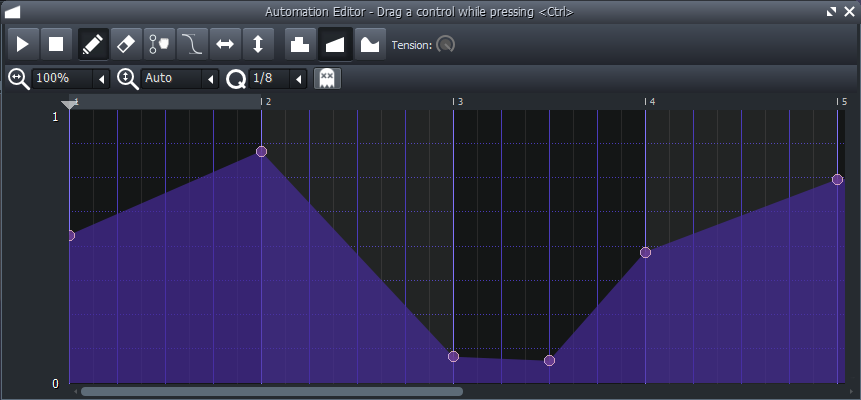
The [**Automation Editor**](/user-manual/fr/navigation/automation.md) allows you to control and change any connected parameter over time automatically.
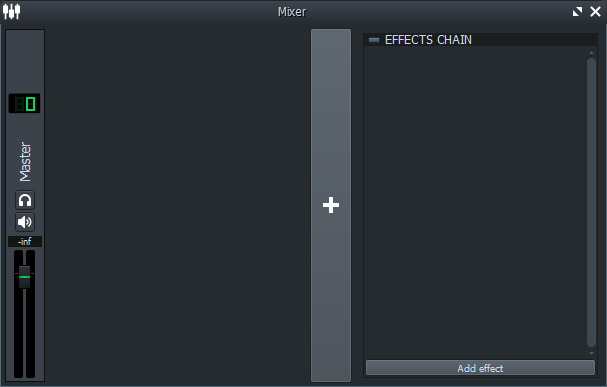
The [**Mixer**](/user-manual/fr/navigation/mixer.md) is where FX channel routing and manipulation takes place.
The [**Project Notes**](/user-manual/fr/navigation/project-notes.md) window allows you to create notes for yourself in a project file It is a simple text editor.

The [**Controller Rack**](/user-manual/fr/navigation/controller-rack.md) is where controllers are added and configured. These controllers allow you to make alterations to connected parameters, much like an automation segment would.

## Parameters
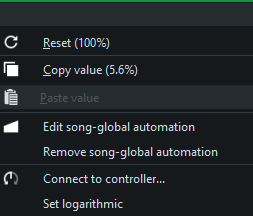
LMMS has many types of common parameters. Most parameters have a similar type of right-click context menu with some common options.
Parameter right-click context menu
Most parameters can be controlled by scrolling over them with the scroll wheel, and by double-clicking them to set their exact value.
Knob
A knob can also be controlled by holding down the left-mouse-button and dragging up and down.
Slider
A slider can also be controlled by holding down the left-mouse button and dragging in either direction along the slider groove.
Drop-down
A drop-down can also be controlled by right-clicking or left-clicking to go down or up the list of options. The entire drop-down itself can be accessed by clicking the ◁ (left-pointing triangle) symbol.
Spinbox / LCD Readout
A spinbox can also be controlled by holding down the left-mouse-button and dragging it up and down.
Toggle
A toggle can only be controlled by clicking it so it is in either of its two states.
Radio Toggle
A radio toggle can only be controlled by clicking on any of its tabs.
Most of the parameters in LMMS can be automated by dragging with Ctrl-drag. There are some more convenient shortcuts that can be used without the hassle of navigating through a right-click menu.
* Double-click a parameter to edit its value
* Middle-mouse click on a parameter to reset its value
* Shift-drag one knob onto another to copy the value of the first knob to the second
* Ctrl-scroll on a knob for more fine scrolling (minute changes, slower scroll)
* Shift-scroll on a knob for more coarse scrolling (larger changes, faster scroll)